Change a guide’s steps
4 steps
Press Edit on the guide. The meeting opens big, with each step’s part on a strip over the speakers’ lanes. Move a part, reword a step, add or remove one, then press Save guide.
- 1
Press Edit at the top of the guide’s steps, or in the guide’s panel on the meeting.
meetbird.ai/meeting/…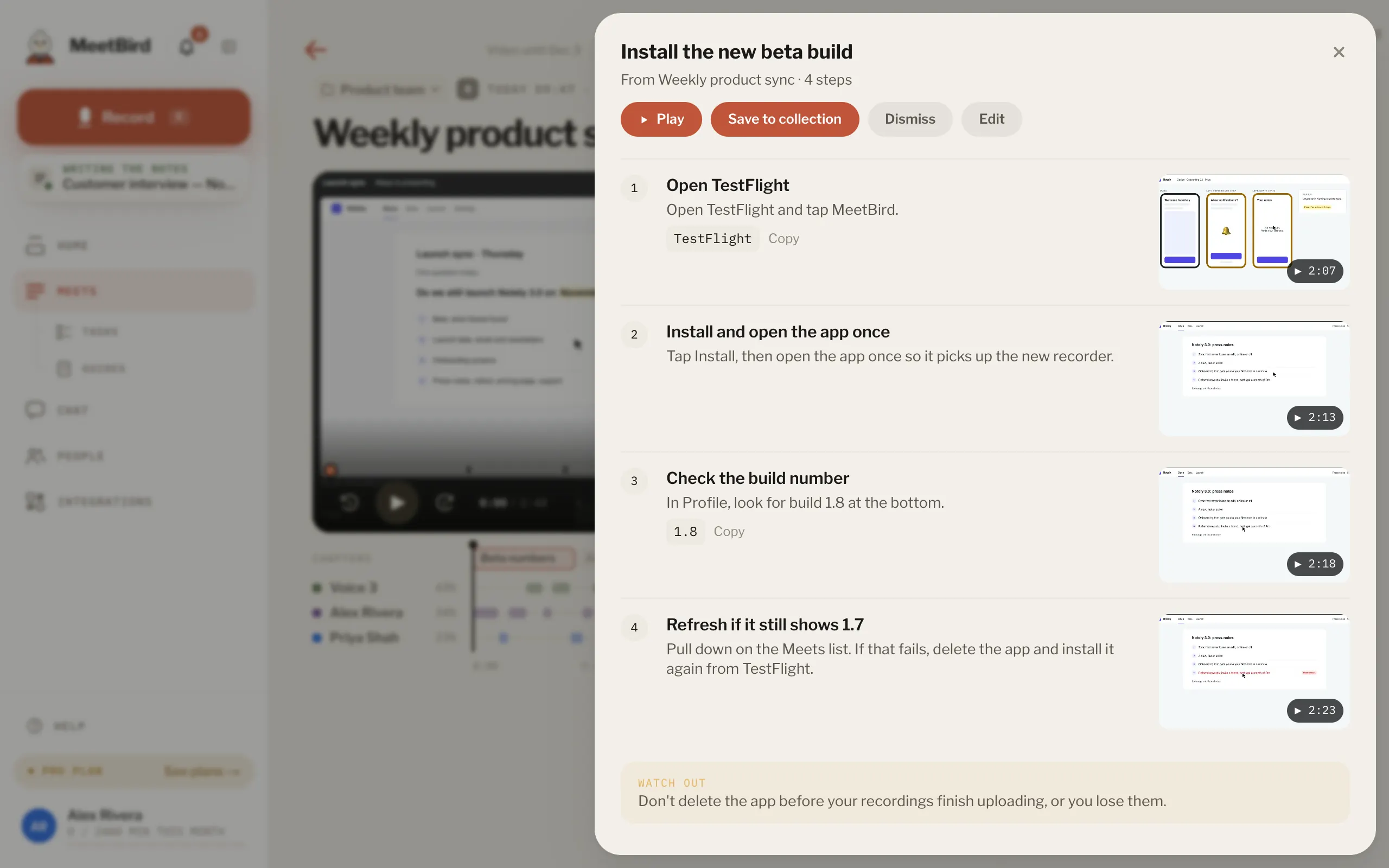
- 2
Press a step’s part on the Steps strip to pick it. Drag its ends, or the whole part. The thin line under the bar is the whole meeting: press or drag it to see another part.
meetbird.ai/meeting/…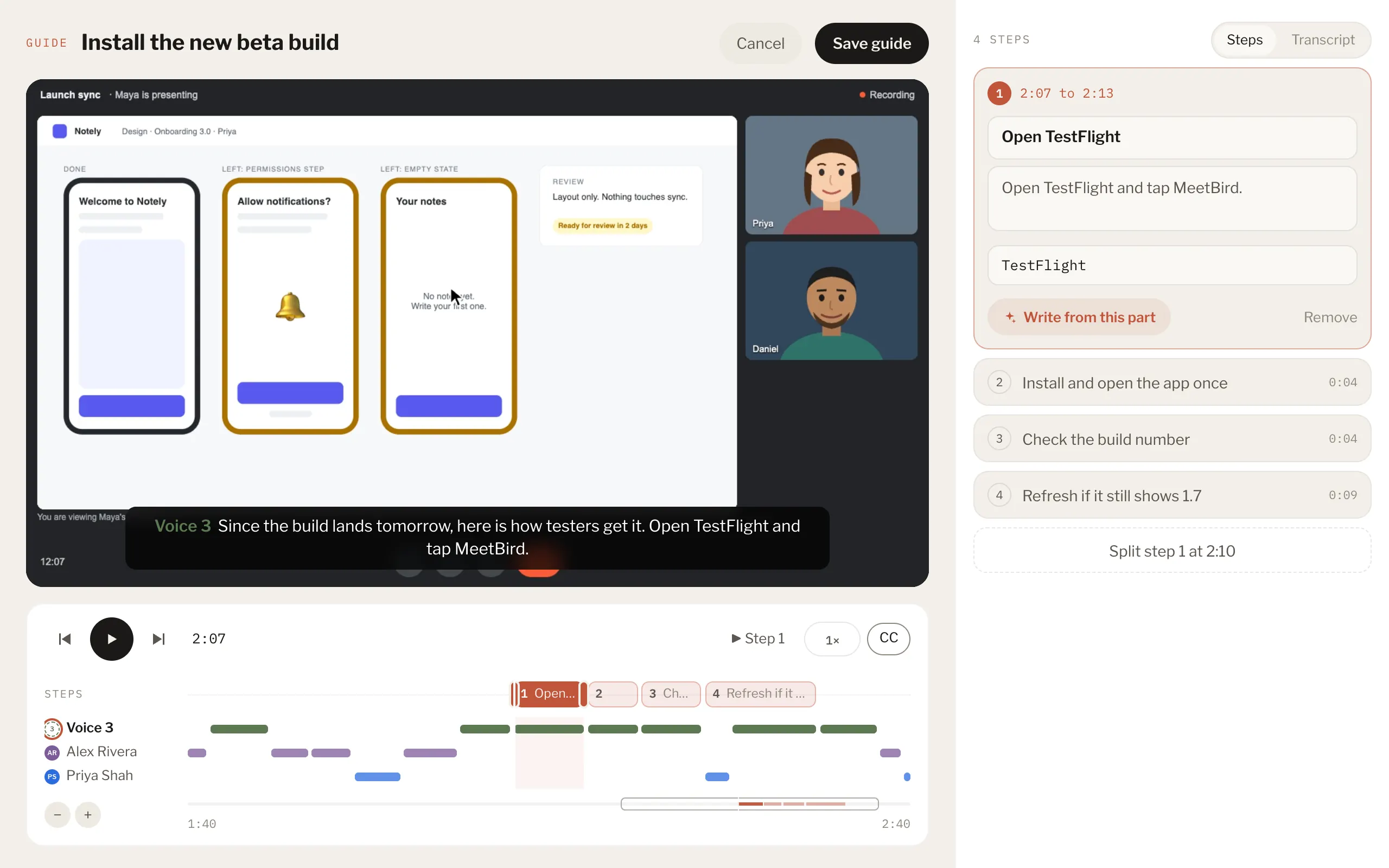
- 1A step's part
- 2The whole meeting
- 3
On the right, change its title, what to do and the text to copy. Write from this part writes them from what was said there; Undo brings back yours.
meetbird.ai/meeting/…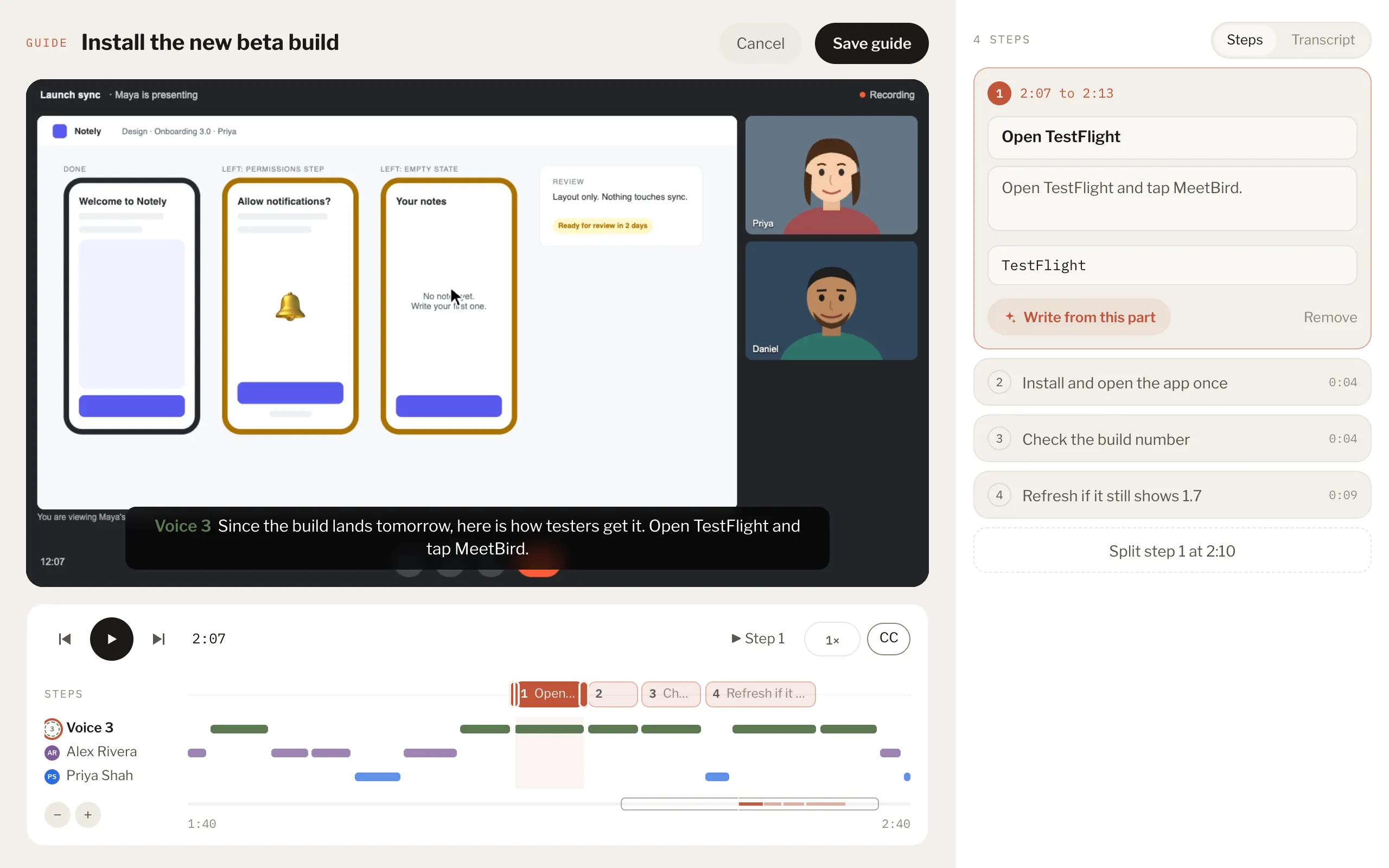
- 4
Move the white line where a step is missing and press + Add a step under the steps. Inside a step it says Split and cuts that step in two. Then press Save guide.
meetbird.ai/meeting/…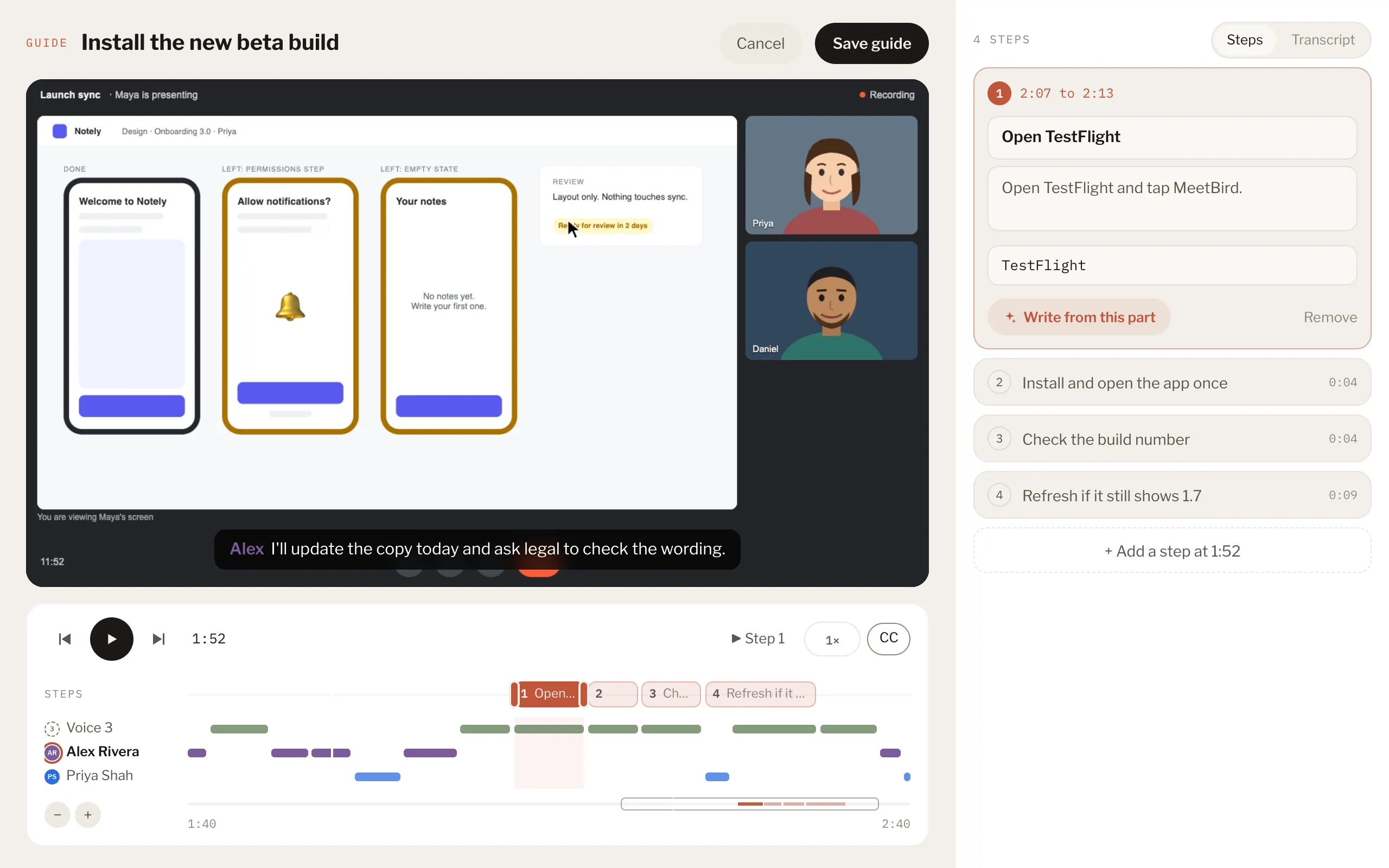
- 1+ Add a step
- 2Save guide
- Steps follow the meeting’s order and never sit on top of each other: a part stops at the steps beside it. Remove takes one out.
- The Transcript tab beside Steps shows the words of the part you picked.
- Once the meeting’s video is gone, each step keeps only its own part: you can make it shorter, not longer, and the rest of the bar says Not kept here.
- Only whoever can edit the meeting can change its guides.