An AI note taker that recognizes voices
Every line has a speaker. Teach MeetBird your voice once and it puts your name on what you say. Everyone else is named by you, once per meeting, or by the voice they chose to teach.
- Every plan, Free too
- Team voices on the Team plan
- Nobody is enrolled for you
QUICK ANSWER
Which AI note taker recognizes people by their voice?
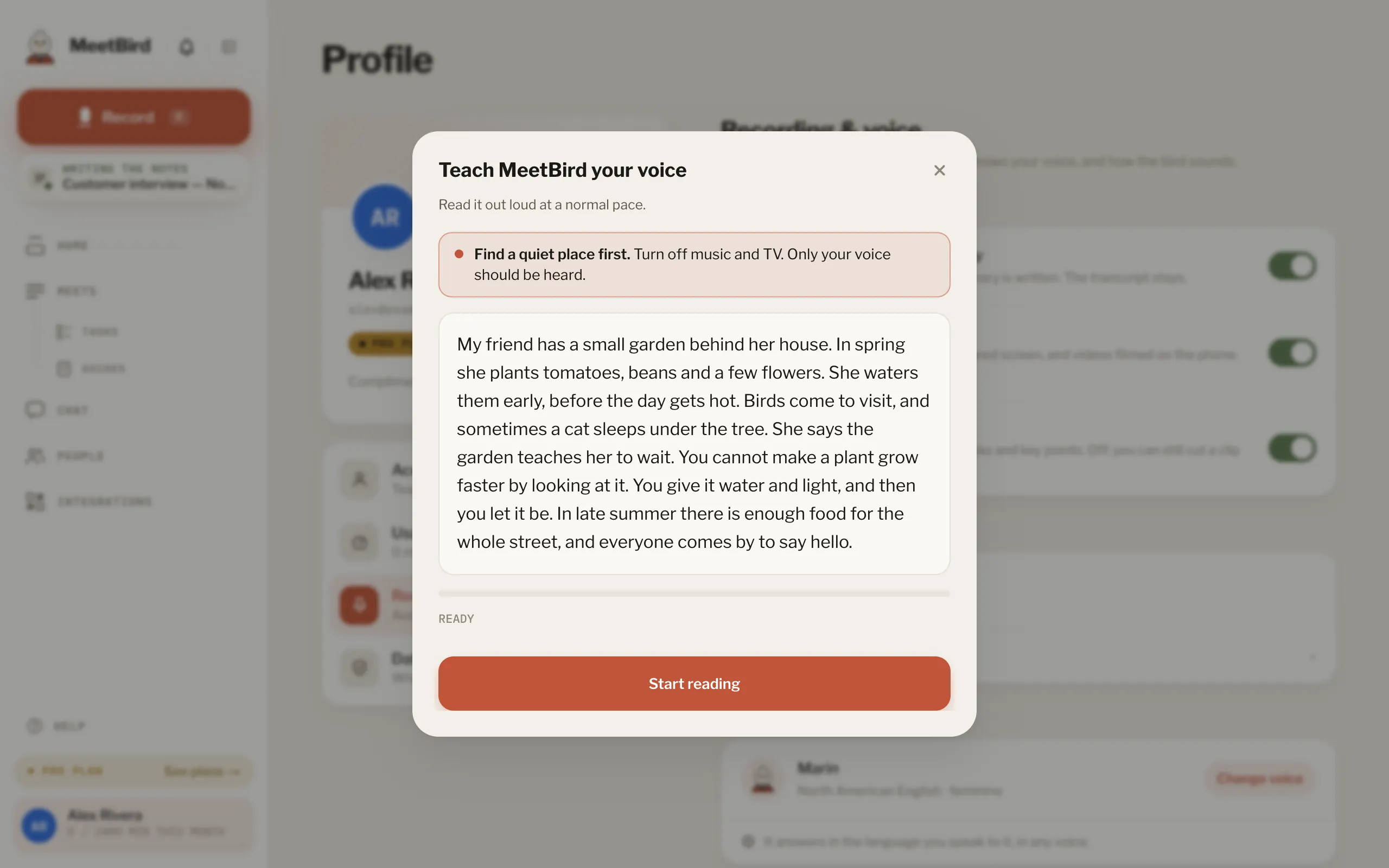
MeetBird tells the voices in a recording apart by itself and recognizes the people who taught it theirs. Read a short text aloud once, about 30 seconds, and it names you in new recordings; when it isn’t sure, it asks instead of guessing. On a Team plan, teammates who switch it on for themselves are recognized in each other’s recordings. Anyone else is Voice 2 or Voice 3 until you say who it is. It works the same for a meeting in the room, a call in a browser tab, and a file you import, because the names come from voices and not from a participant list.
Updated . Written by the people who make MeetBird. The people and meetings in the pictures are sample data.
Three ways a line gets its name
| Who | How they are named | What you do | Plan |
|---|---|---|---|
| You | Your voice profile | Read a short text aloud, once | Every plan |
| A teammate who agreed | Their own voice profile, in your team’s recordings | Nothing. They switch it on themselves | Team |
| Everyone else | Told apart as Voice 2, Voice 3…, then named by you | One click per voice, per meeting | Every plan |
Teach it your voice
- 1
Open your voice profile
Profile › Recording & voice › Voice profile, then Teach MeetBird my voice and I agree, start.
- 2
Read for about 30 seconds
The words turn green as it hears them. There are passages in English and Turkish. Find a quiet place: only your voice should be heard.
- 3
Let it keep learning
When you say This is me on a voice, it learns from that meeting. Change your mind and it forgets it again.
- 4
Find yourself in what you already have
Find me in recent recordings looks through the last 30 days for you, once a day.
When it gets one wrong
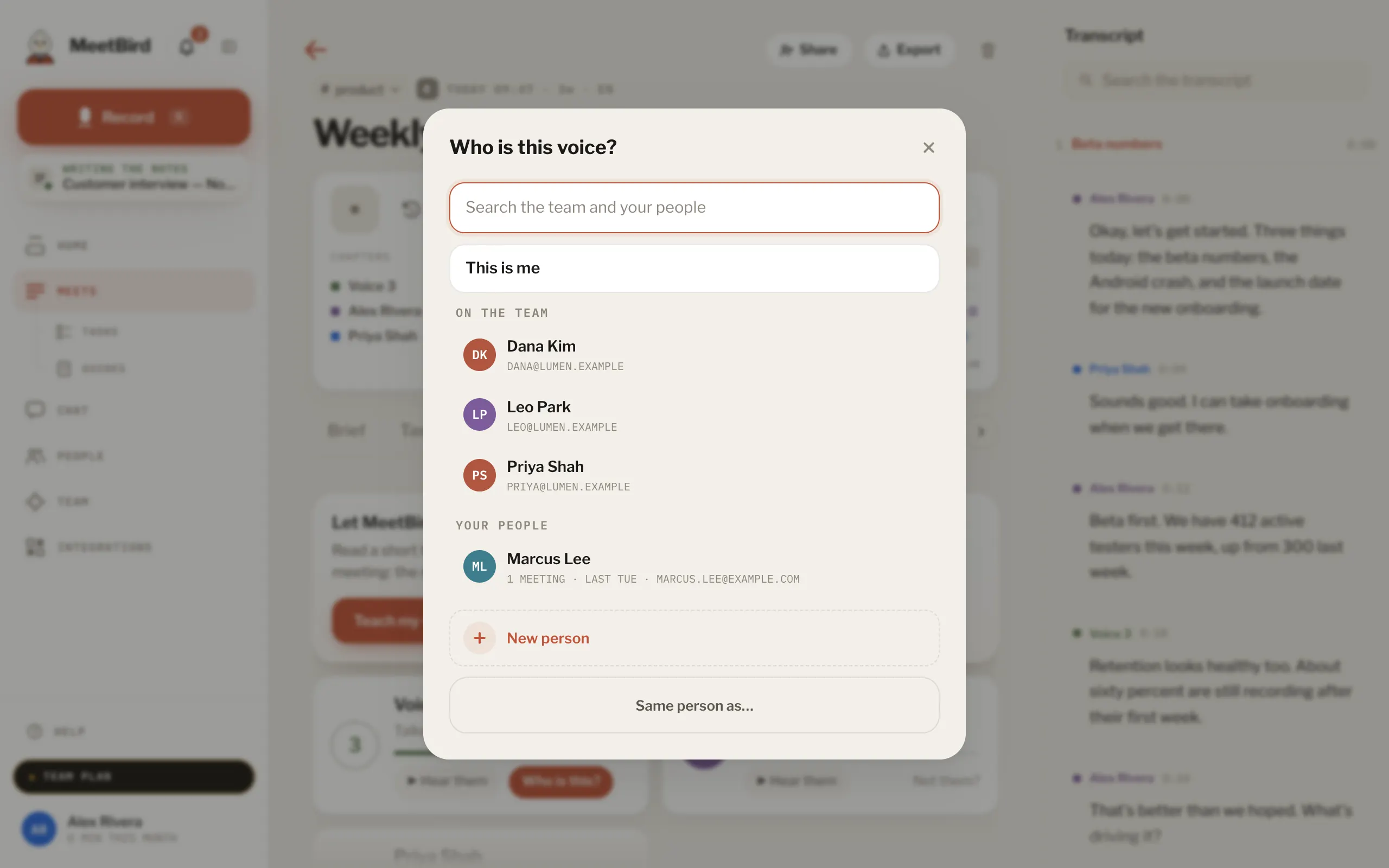
- One line: point at it, press Not …? and choose who really said it.
- Two voices that are one person: open one and choose Same person as…. If that was a mistake, you can split them off again, even days later.
- Badly mixed up: whoever recorded the meeting can press Reset voices to go back to how MeetBird first heard them.
- The brief follows. After voices change, it is rewritten about a minute later. Tasks you edited or confirmed stay as you left them.
Voice labels, names from a list, and voice recognition
Three different things get sold as “speaker identification”.
| Kind | What you see | Where the name comes from | Works for a room? |
|---|---|---|---|
| Diarization | Speaker 1, Speaker 2 | Nothing: voices are only told apart | Yes |
| Names from the call | Real names | The platform’s participant list or tiles | No. A room is one participant |
| Voice recognition (MeetBird) | Your name, and teammates’ | A voice somebody chose to teach | Yes |
Consent is the point
A voice is personal data, so MeetBird recognizes nobody who didn’t ask for it. Only you can make your voice profile, and only you can let your team’s recordings use it. No admin can switch it on for you. It is never used outside your team, and leaving the team turns it off. The profile is kept encrypted until you delete it. Privacy names the service that compares voices.
Questions people ask
Does it recognize everyone in the meeting?
No. It recognizes you, and on a Team plan teammates who chose to be recognized. Other people are told apart and named by you.
Does it need a separate microphone for each person?
No. One device on the table is enough. Voices are told apart from the sound alone.
Does it work for imported files and phone recordings?
Yes, for audio and video files. Phone lines carry less of a voice, so there it names someone only when it is very sure.
What happens when it isn’t sure?
It asks: “Voice 2 · Ada?”. Only people who can already see the meeting see the question.
Can I delete my voice profile?
Yes, any time, in Profile › Recording & voice. Names already on past meetings stay. You can also pause it without deleting.
Is voice recognition on the free plan?
Yes, for your own voice. Recognizing teammates is part of the Team plan.
Read next
Teach it your voice in half a minute.
Then record a meeting and look for your name on what you said.