Pictures from the shared screen on a task
When a screen was shared in the meeting, MeetBird puts a picture of what was on it, and a clip of that moment with its sound, on each task agreed while it was shown. They are under Attachments on the task, from MeetBird. A guide's steps get them too. The whole screen also plays next to the meeting's player, in step with the words.
- 1
On Record, choose A call in a tab and leave Use the screen too on.
meetbird.ai/record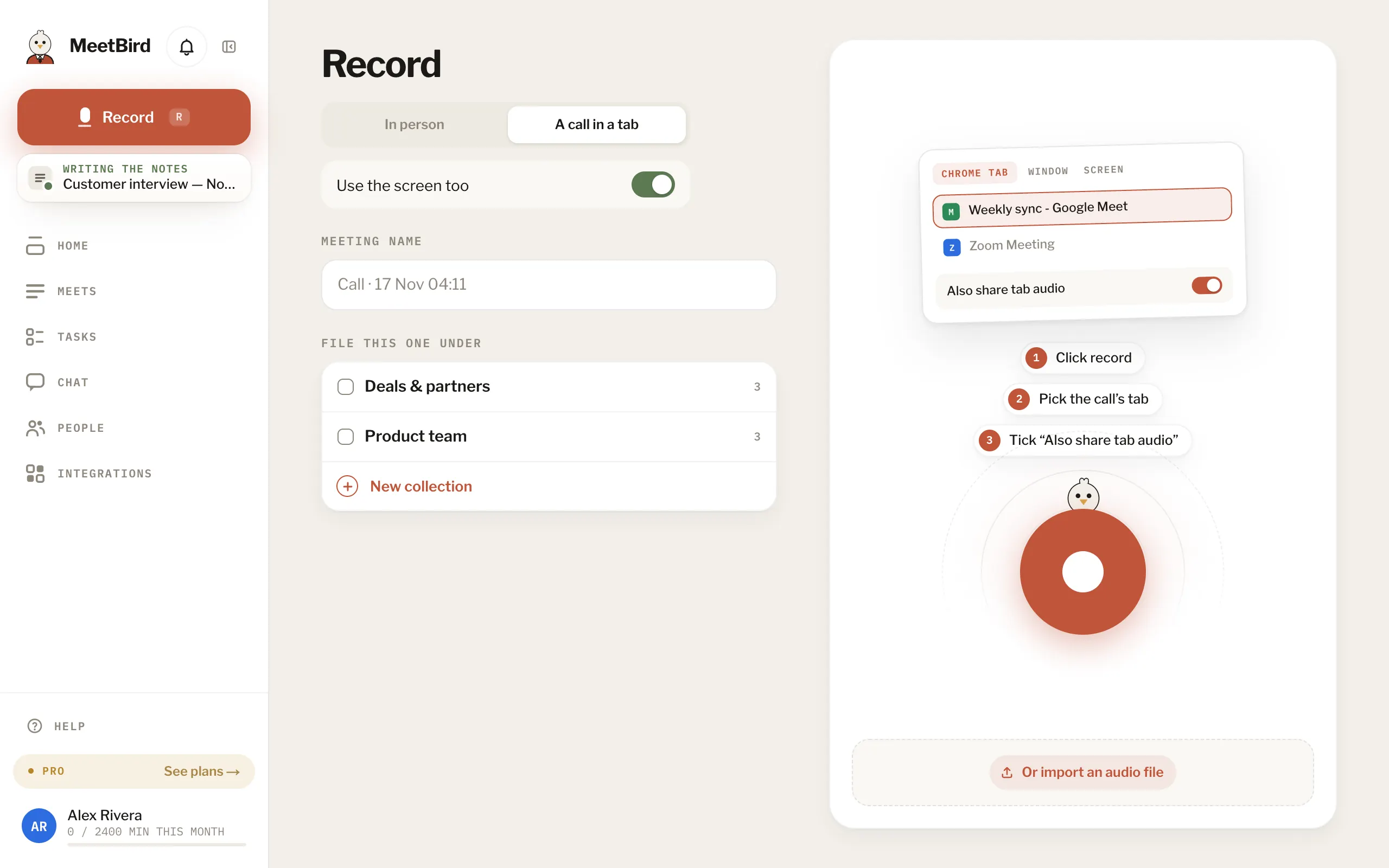
- 2
When the notes are ready, open a task: the pictures and the clip are under Attachments. Press one to open it big.
meetbird.ai/tasks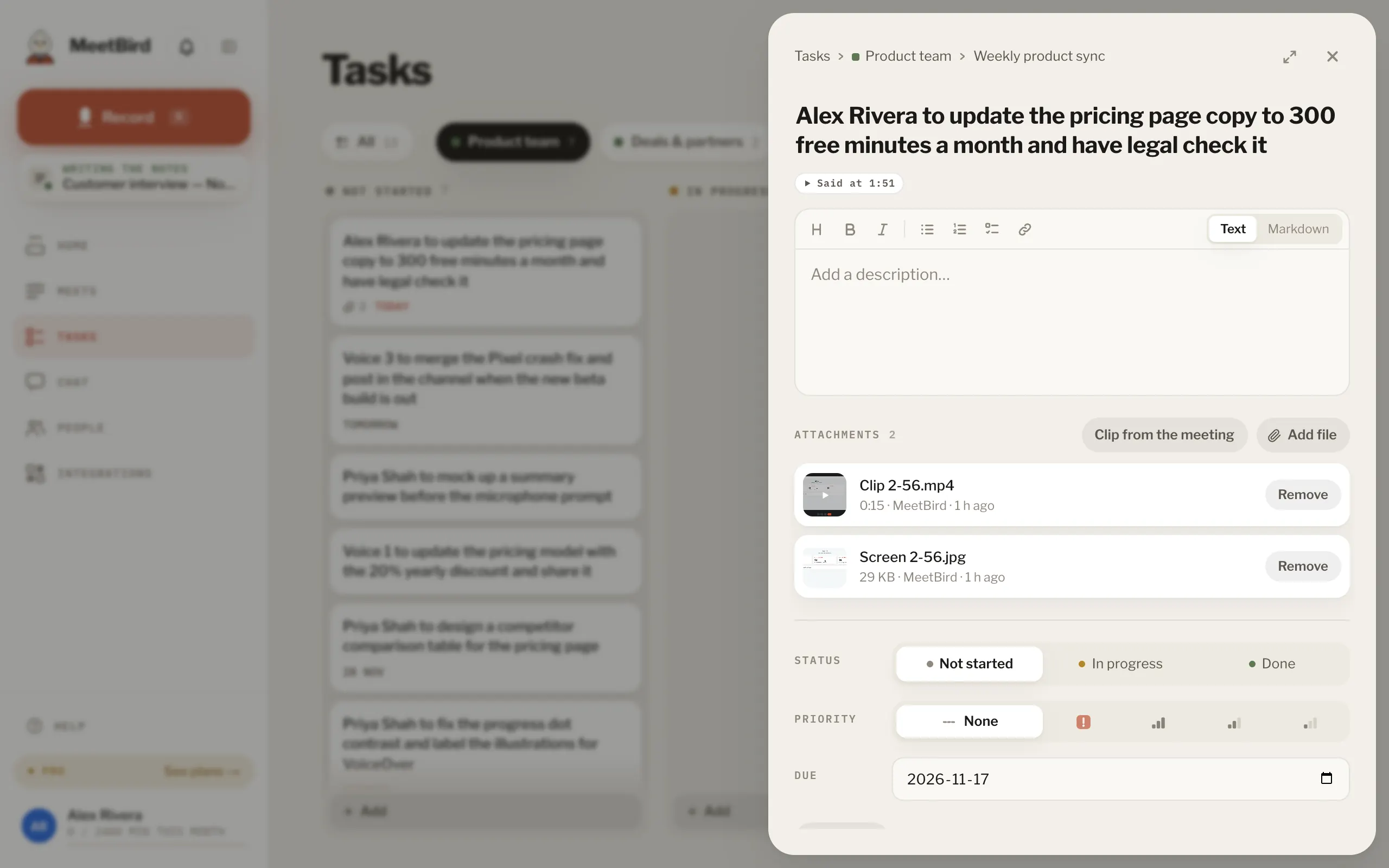
- 3
Press Said at on the task: the meeting plays from just before the moment it was agreed. The task slides into a small Task tab on the right edge; press it to bring the task back.
meetbird.ai/tasks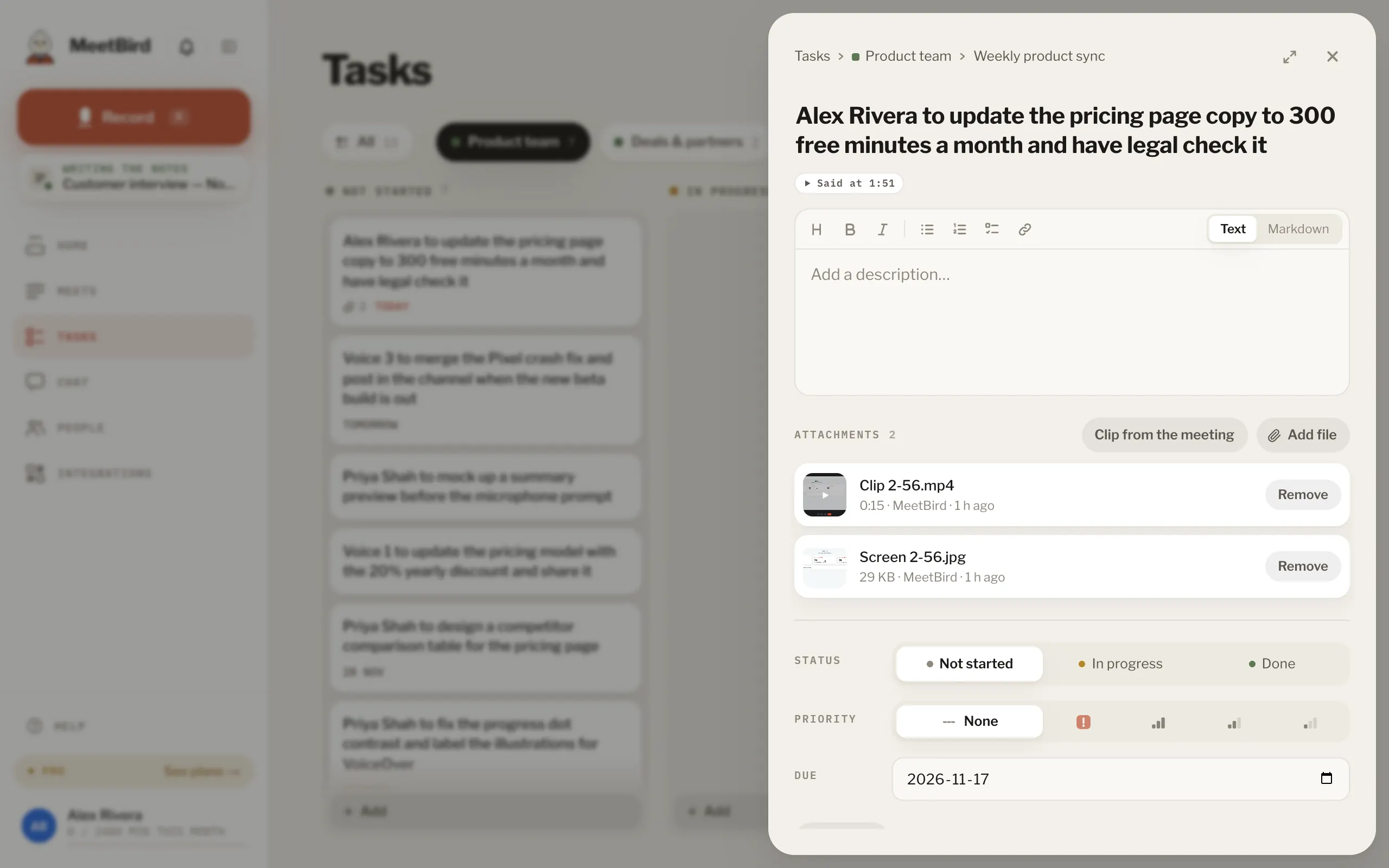
- 4
In the notes, open a guide: each step explained while the screen was shown has its picture. Press ▶ beside a step to play that moment.
meetbird.ai/meeting/…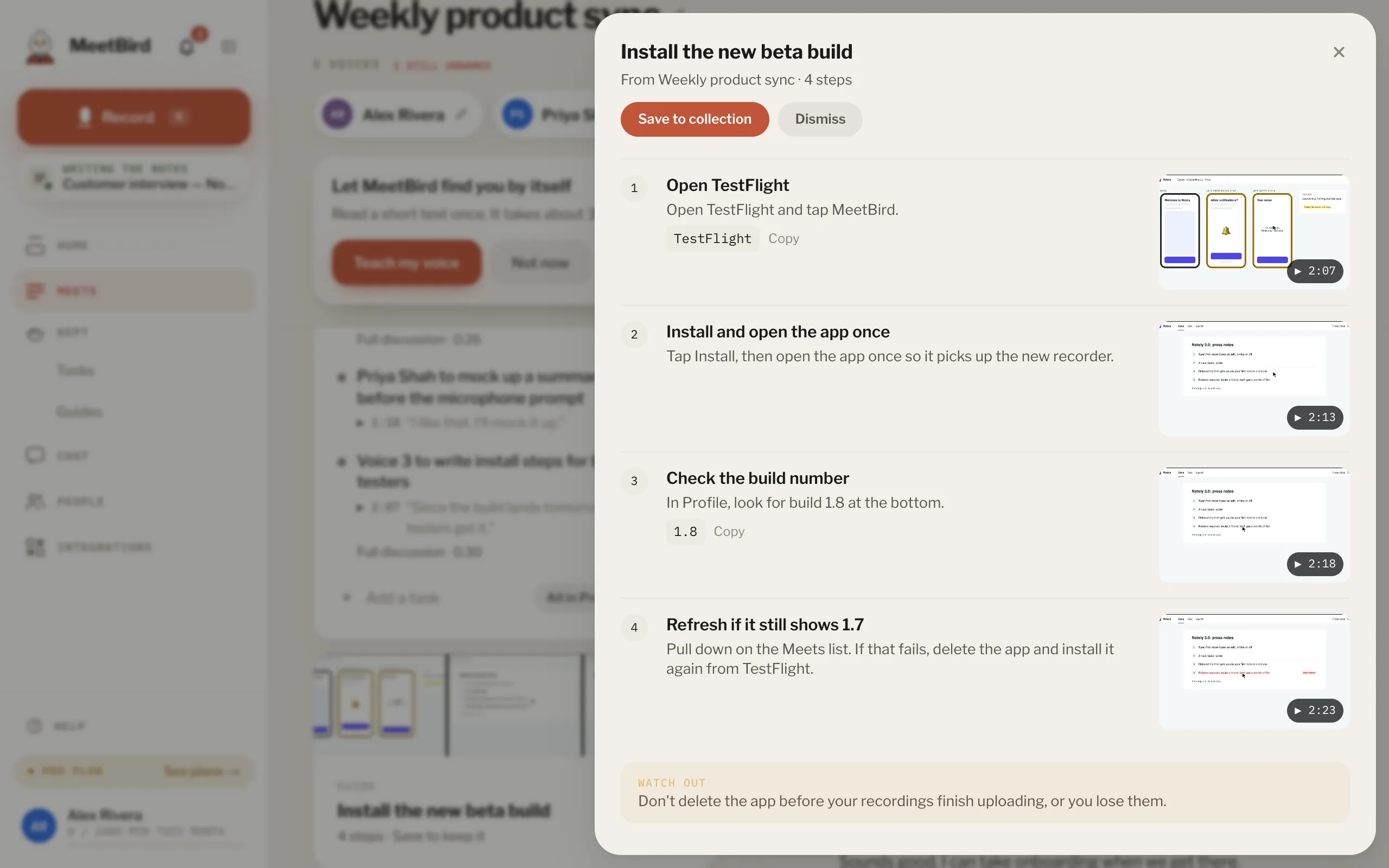
- 5
Not the right part? Open the clip and press Edit: the meeting opens big around it. The camera button beside Edit puts what you see on the task as a picture.
meetbird.ai/tasks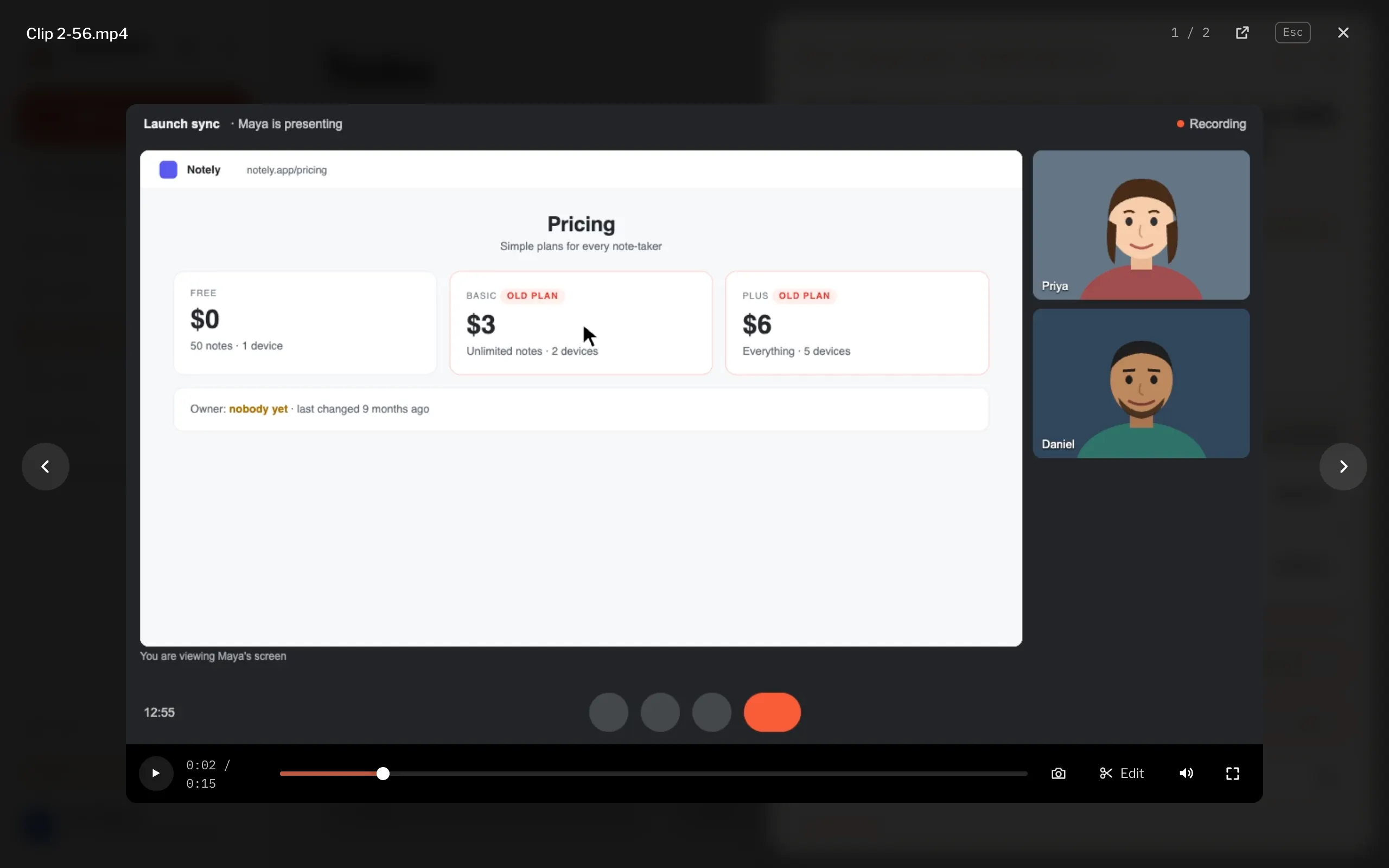
- 1Edit: change its part
- 2Take this picture
- 6
Drag its ends, or press a line in the transcript, then Save clip. Press the bar or drag the white line to see any moment. 1 min, with its arrow, shows a minute more of the meeting on that side; so does holding an end past the edge of the bar. A clip is up to 5 minutes.
meetbird.ai/meeting/…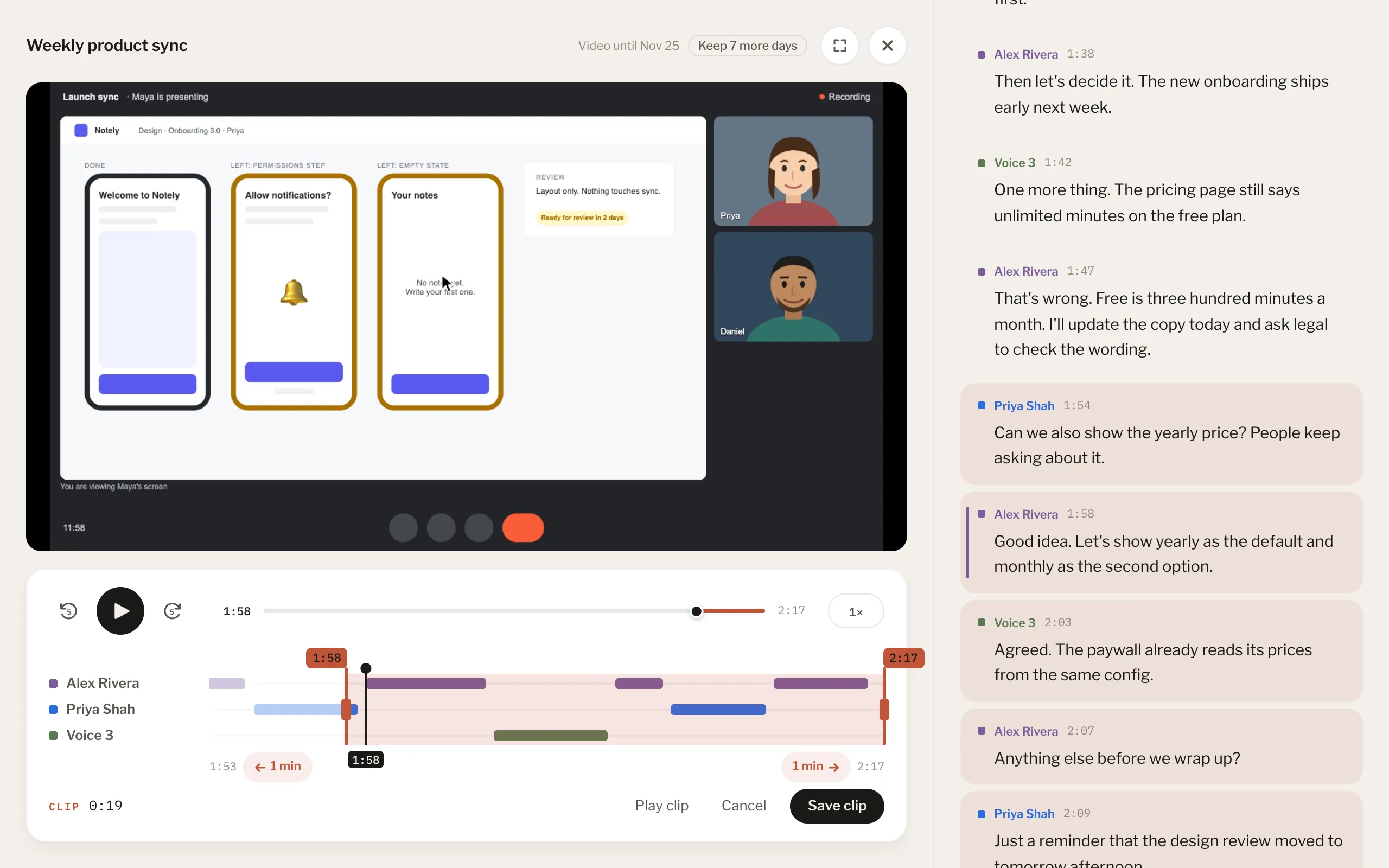
- 1Drag its ends
- 2A minute more
- 3Save clip
- 7
No clip on a task, or one you added yourself? Press Clip from the meeting under Attachments, then set its part the same way. Nothing is added until you save.
meetbird.ai/tasks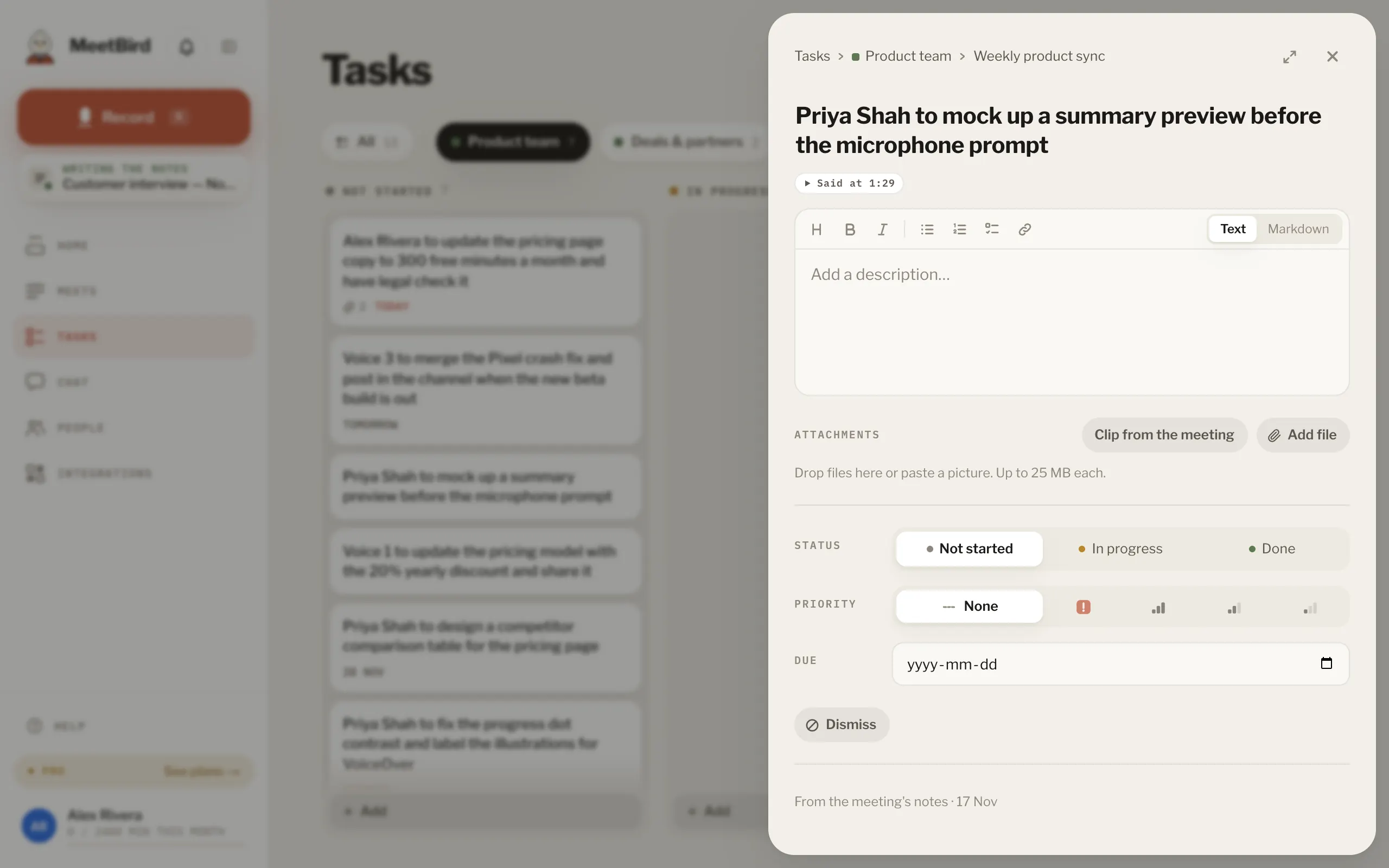
- A clip starts at its moment. It also has 3 seconds before and after, faint on its bar: drag back to hear what led up to it.
- It works for a Zoom recording that comes in, and for an MP4 or WebM file you import, too.
- A picture shows the whole call as it was recorded. A screen about something else, or one showing a password or a private message, gives no picture.
- Remove takes a picture off like any file. The meeting’s full video plays on its page for 7 days, then it is deleted. The pictures and clips stay, as you left them: after that a clip can't change. Keep 7 more days under the video keeps it longer.
- Don’t want them? Turn off Profile › Recording & voice › Make clips automatically. The video still plays on the meeting’s page, and Clip from the meeting still works.
- Turn Use the screen too off, or Record video on Profile (the same switch), to record only the sound. MeetBird remembers your choice.
- To see one now, open Find an owner for the pricing page in the sample meeting, Launch sync. The tour shows it too.