Bring in Microsoft Teams meetings
On Pro+ and Team, MeetBird brings in the recordings Teams makes of meetings you organize. No bot joins the call. You connect your work or school account on Integrations. Your Microsoft 365 admin approves MeetBird once, for your whole organization: if that’s you, you approve it right there. Then every recorded meeting comes in on its own, written up. It’s in early access: if Integrations shows Microsoft Teams as Coming soon, it isn’t open for your account yet.
- 1
Open Integrations and press Microsoft Teams under Where meetings come from. On its page, press Connect Teams.
meetbird.ai/integrations/teams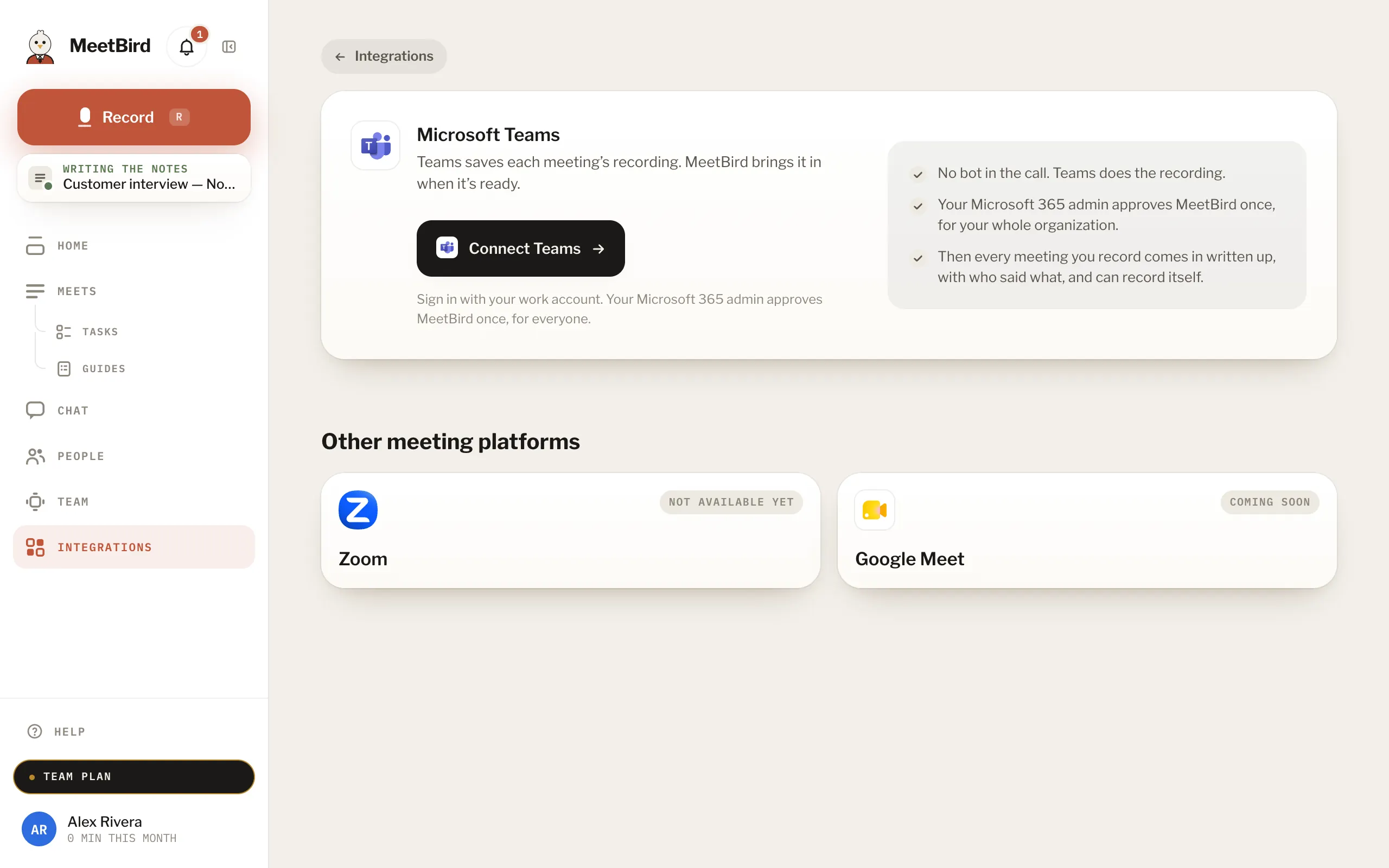
- 2
Microsoft asks which account to use. Pick your work or school account and press Accept. If your admin approved MeetBird already, that’s it: Teams is connected.
login.microsoftonline.com/organizations/oauth2/v2.0/authorize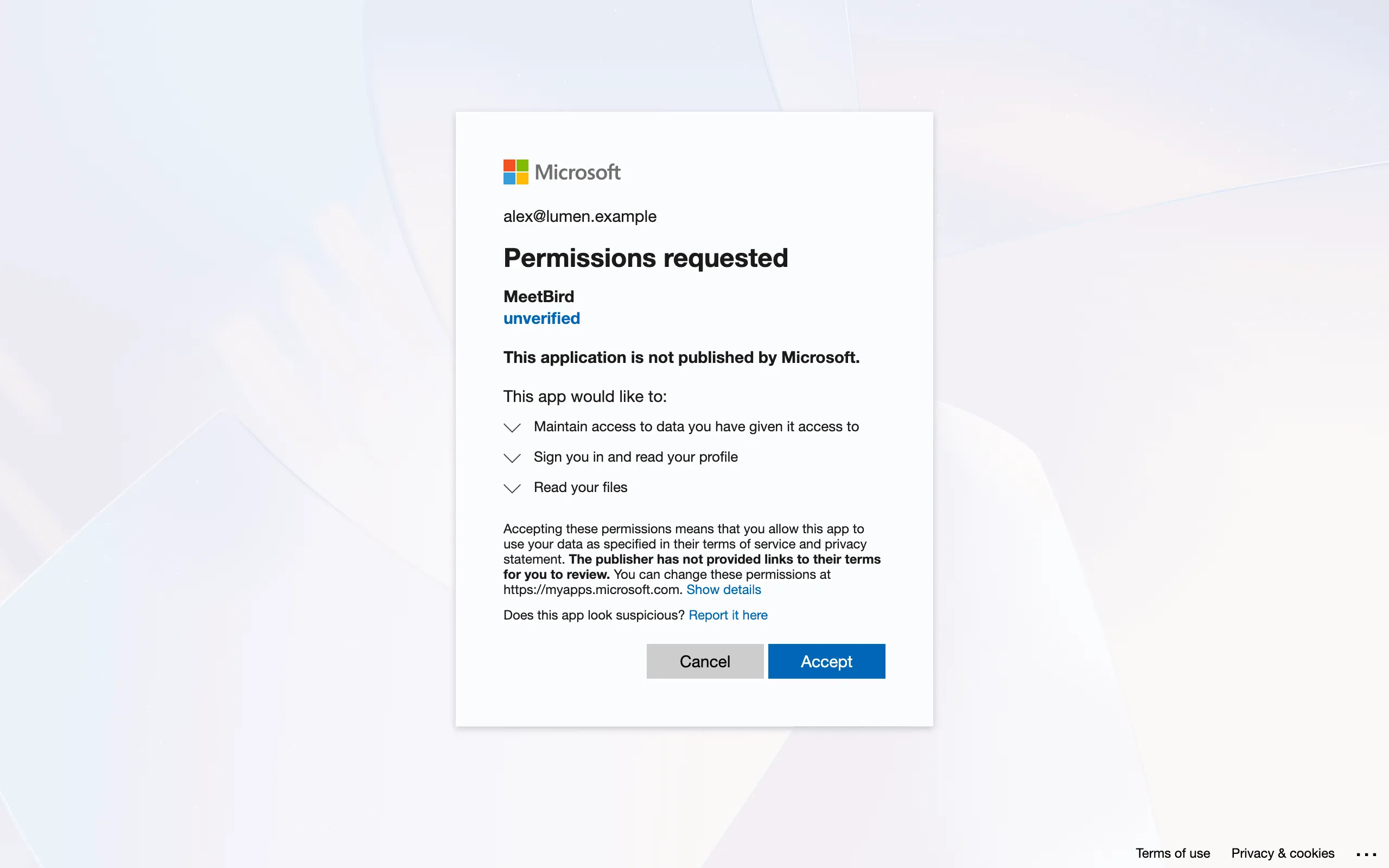
- 3
Are you a Microsoft 365 admin? MeetBird sees it and opens Microsoft’s approval for your organization next: press Accept there. Teams is connected, for you and for everyone at your organization who connects it after you.
login.microsoftonline.com/organizations/v2.0/adminconsent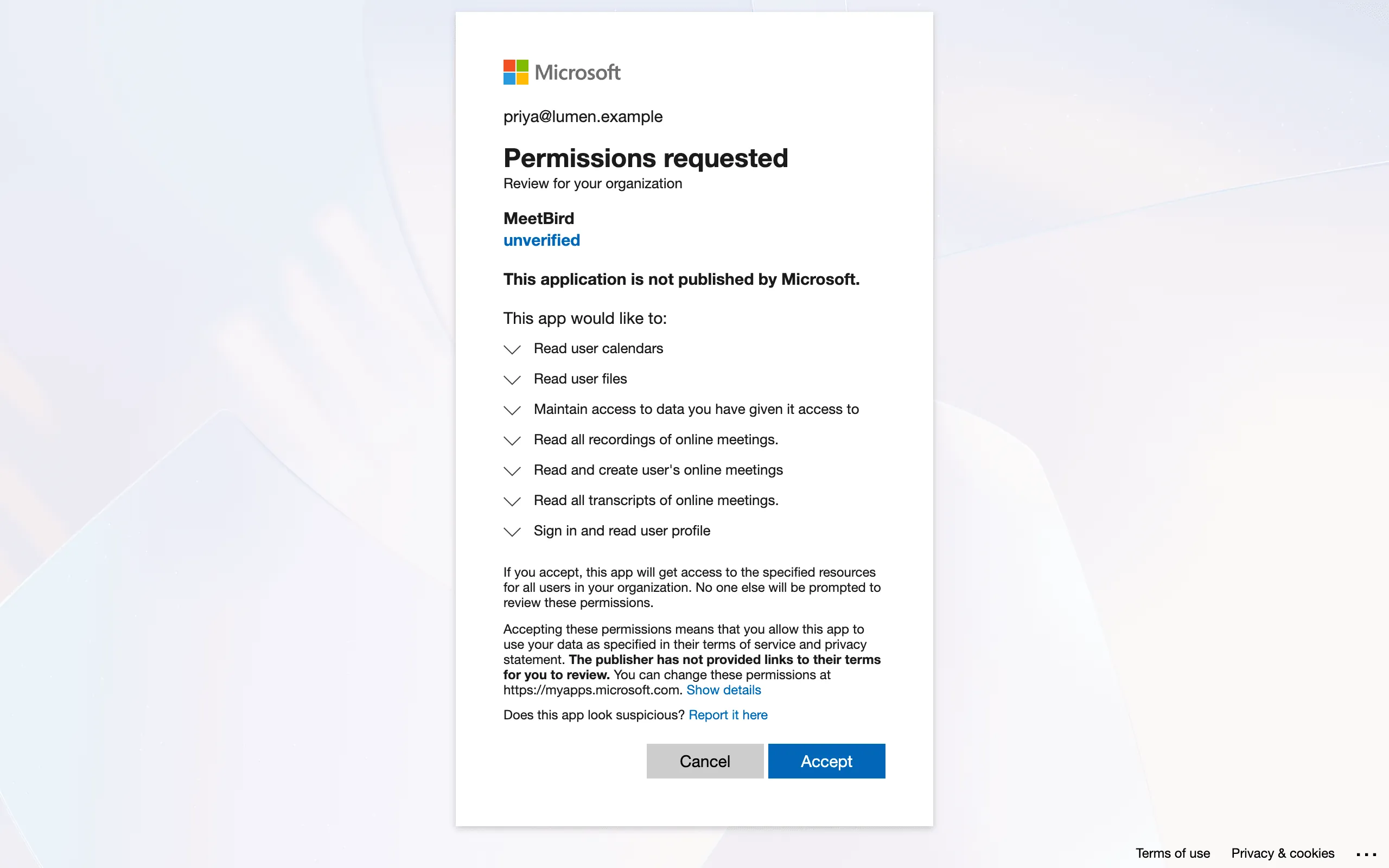
- 4
Not an admin? Your card says CONNECTED in amber, with One last step: nothing comes in from Teams until your admin approves MeetBird. Press Ask your admin.
meetbird.ai/integrations/teams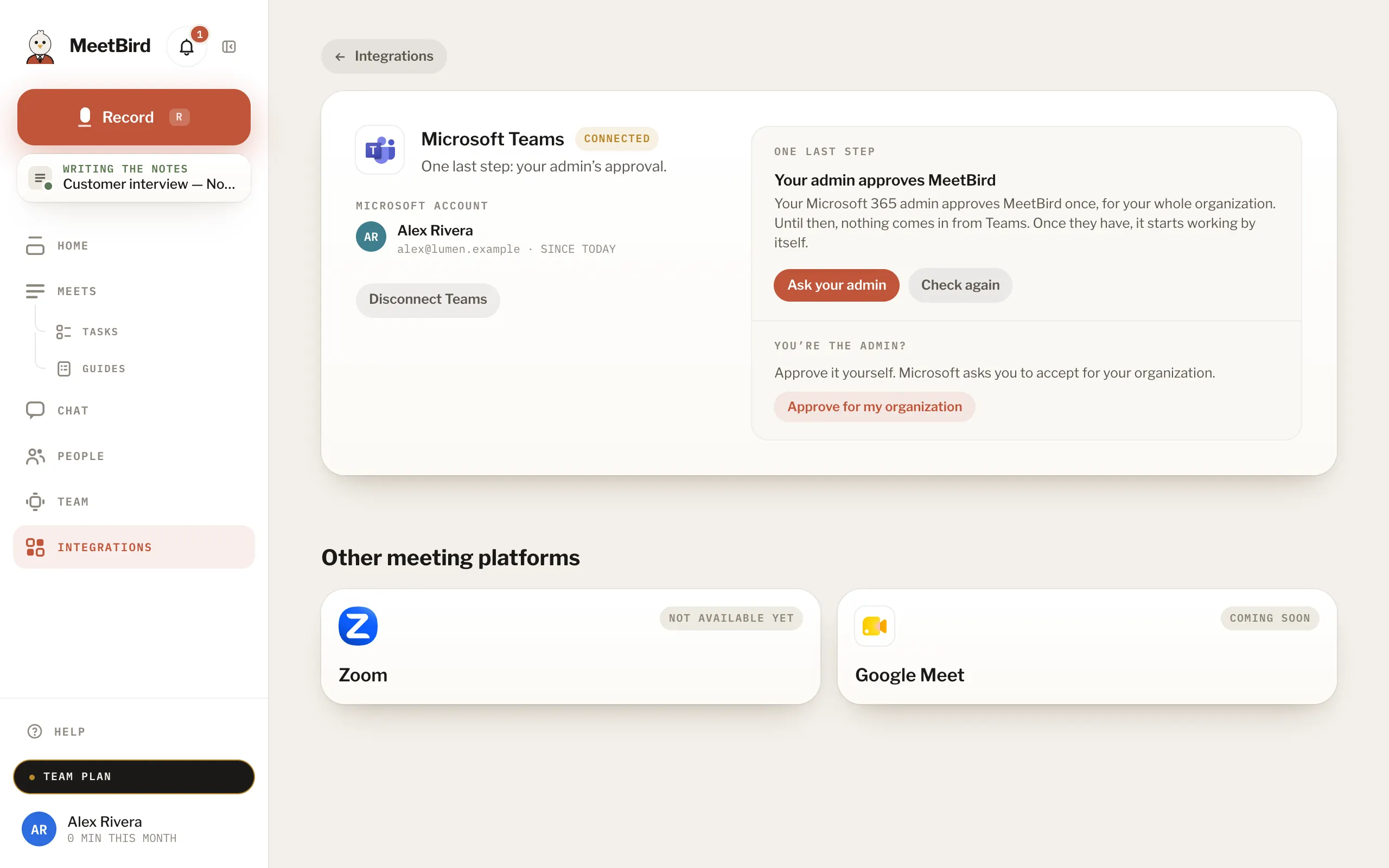
- 5
Press Email it to your admin, or copy the link and send it. Once they approve, your card turns green by itself within a few minutes, and you get a notification. Check again asks Microsoft right away.
meetbird.ai/integrations/teams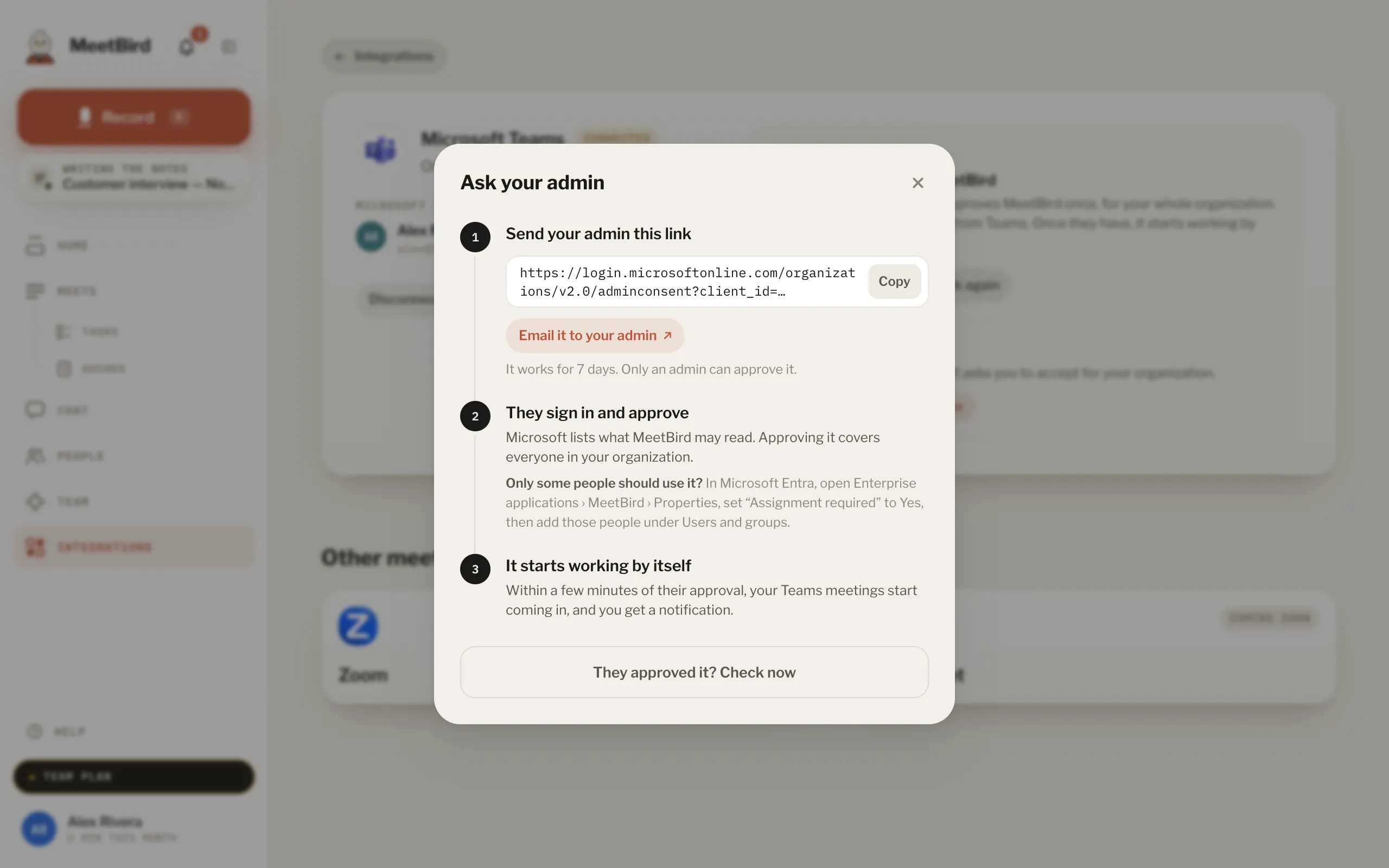
- 6
Connected, turn on Teams records every meeting I organize. Or record a meeting in Teams as you always do: More › Record and transcribe › Start recording. About 10 to 20 minutes after it ends, it’s in Meets with its notes.
meetbird.ai/integrations/teams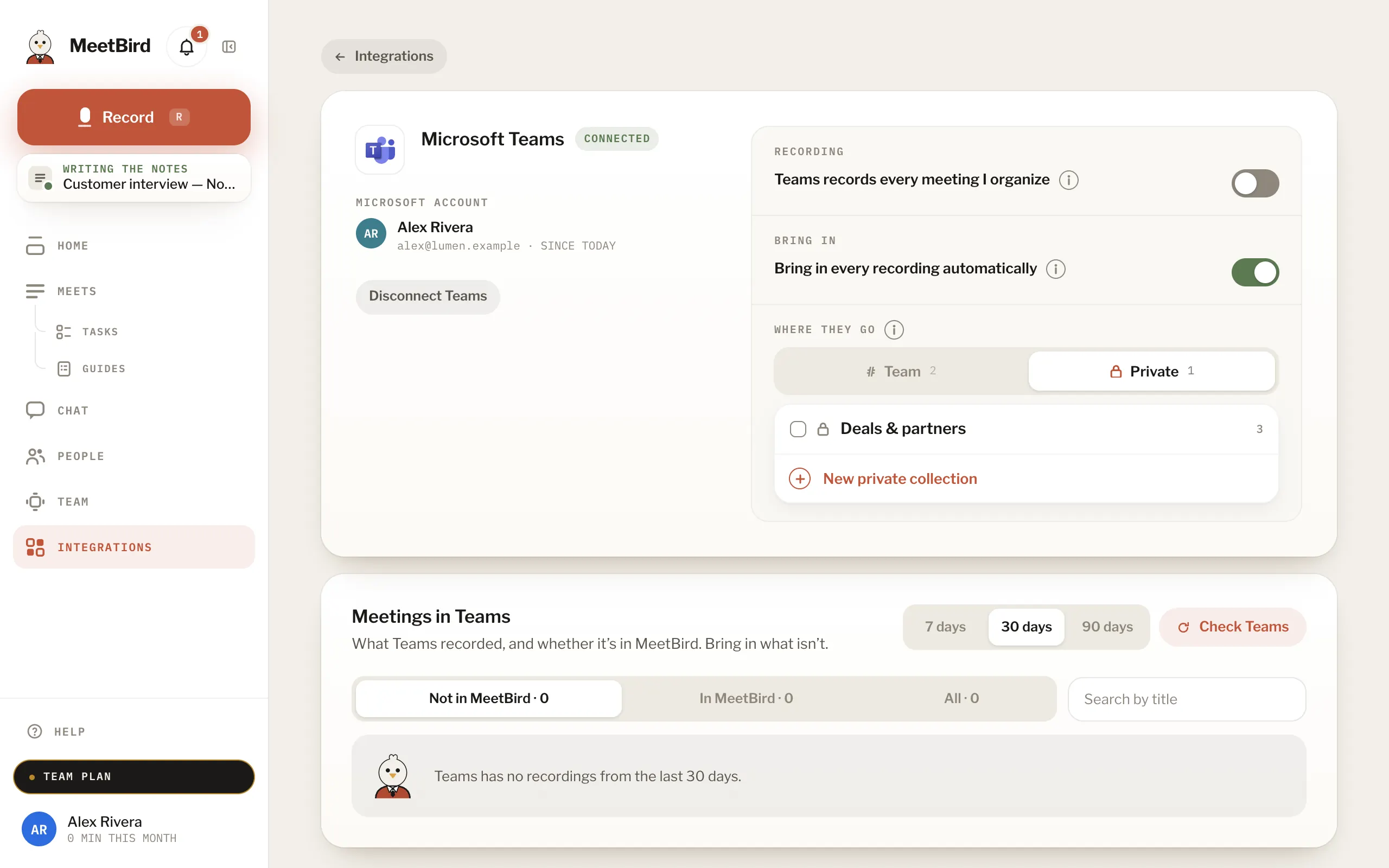
- An admin whose card still says CONNECTED in amber? Press Approve for my organization on it and accept for your organization. See For Microsoft 365 admins: approve MeetBird.
- With Teams records every meeting I organize on, MeetBird turns on Teams’ Record and transcribe automatically for each Teams meeting in your calendar, two weeks ahead, and looks for new ones every 5 minutes. A meeting booked less than 5 minutes before it starts may begin before MeetBird sees it, and one already going when you turn this on won’t record by itself: press record in Teams for those. Turn the switch off and MeetBird turns those off again.
- MeetBird can’t start Teams’ recording while a meeting is on. A meeting started with Meet now or in a channel isn’t in your calendar, so press record in Teams for those.
- Connected for your whole organization, the Teams meeting you’re in shows under Record while it’s on. When you leave, it says MeetBird is waiting for Teams to finish the recording. If nobody recorded it, it goes away on its own.
- Teams saves a meeting’s recording to its organizer’s OneDrive. Meetings someone else organizes come in on their account, not yours.
- Connected for your whole organization, speakers come in with their names once your admin lets apps read Teams transcripts. Otherwise, name the voices yourself on the meeting page.
- Bring in every recording automatically, under BRING IN, is on at first. With it on, Teams meetings land where WHERE THEY GO says; Private (the default) keeps them yours. Turn it off to pick the ones you want from Meetings in Teams: MeetBird asks Where should it go? each time.
- Meetings in Teams, under the card, lists what Teams recorded in the last 7, 30 or 90 days. Not in MeetBird shows the ones to bring in, In MeetBird the ones already here. Search by title, tick the ones you want and press Bring in. One you deleted from MeetBird comes back the same way while Teams still has it.
- Personal Microsoft accounts (Outlook.com, Hotmail) keep no Teams recordings MeetBird can read. Use a work or school account.
- Microsoft says it can’t find your account when you sign in to Teams? That’s the sign-in for personal accounts. Open teams.microsoft.com and sign in there with your work or school account.