Record a Zoom, Meet or Teams call from your browser
Web4 steps
In Chrome or Edge, choose A call in a tab on Record. MeetBird records the call’s sound and your microphone together, so both sides are in the transcript. Nothing joins the call.
- 1
Open the call in a browser tab: Zoom, Google Meet or Teams on the web.
meetbird.ai/record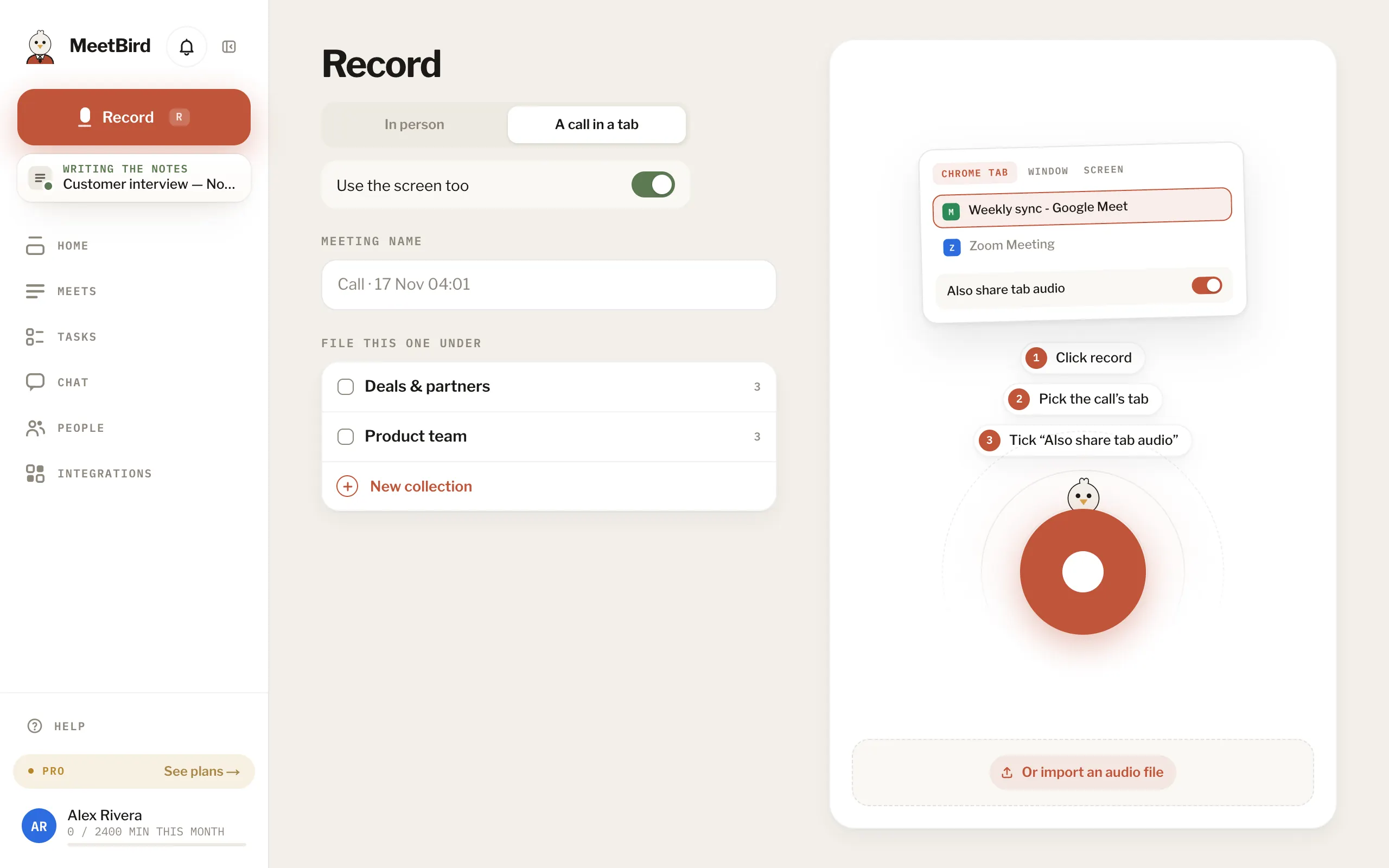
- 2
On Record, choose A call in a tab and press record.
meetbird.ai/record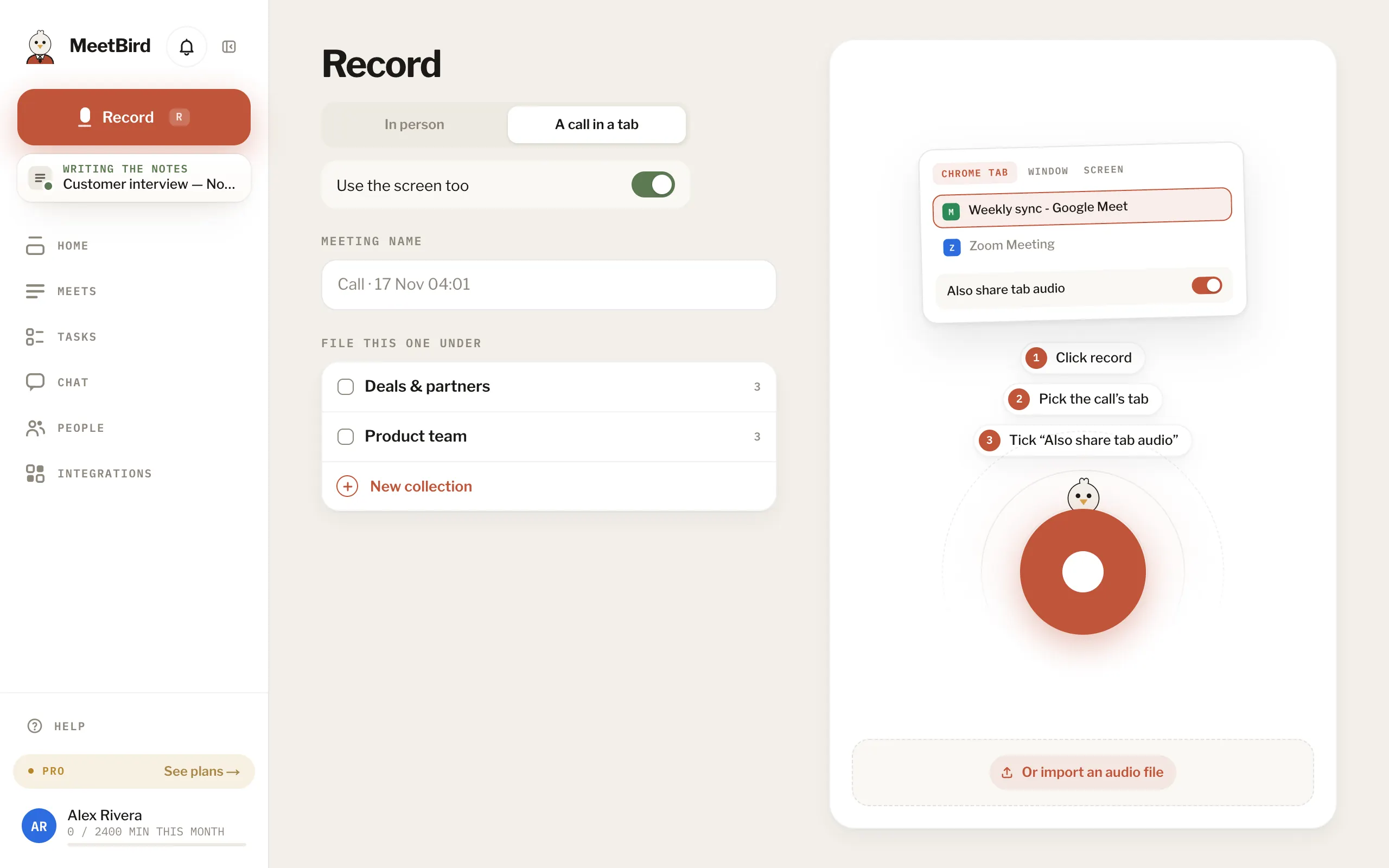
- 1A call in a tab
- 2Then record
- 3
In Chrome’s share window, pick the call’s tab.
meetbird.ai/record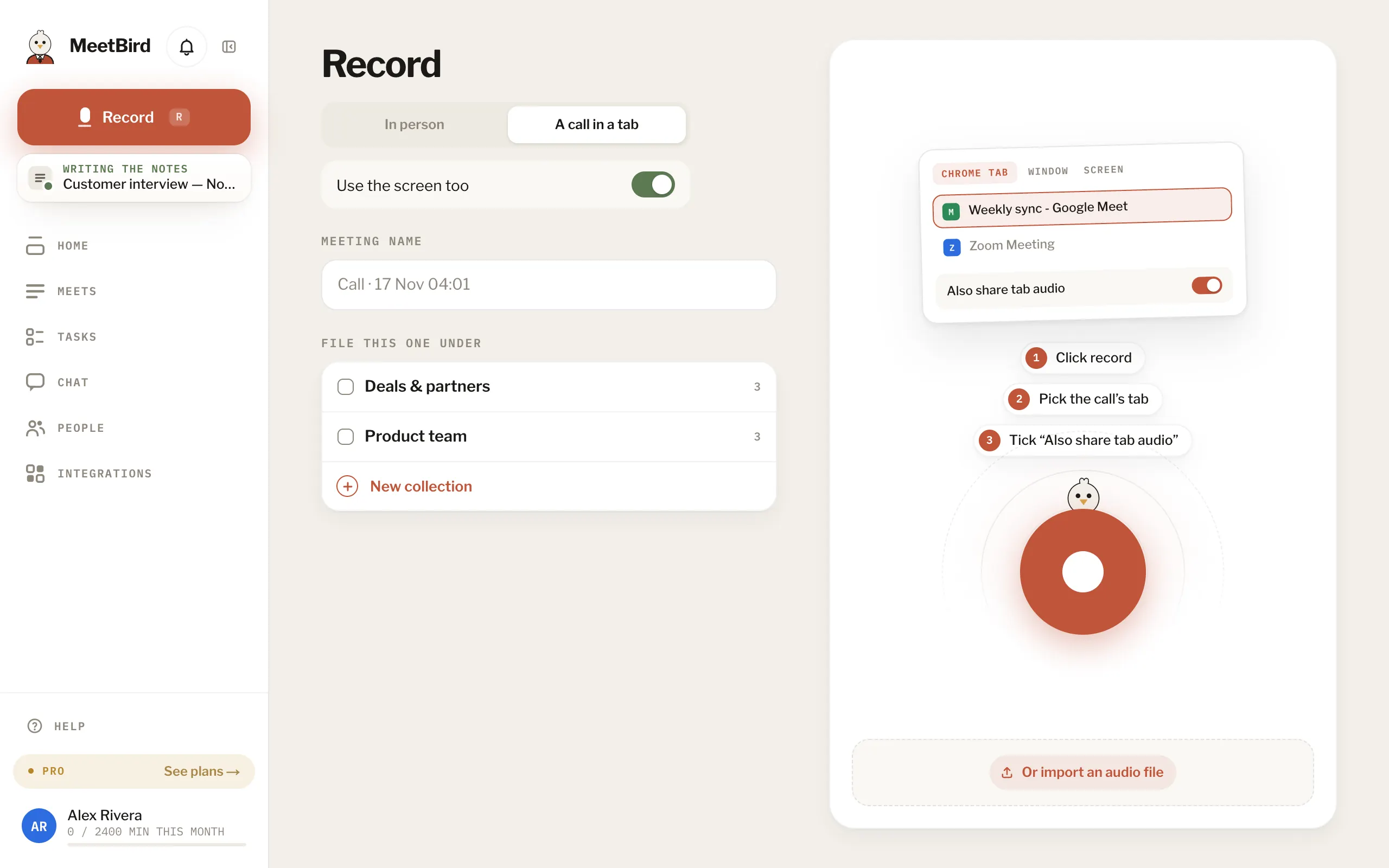
- 4
Tick Also share tab audio, then Share.
meetbird.ai/record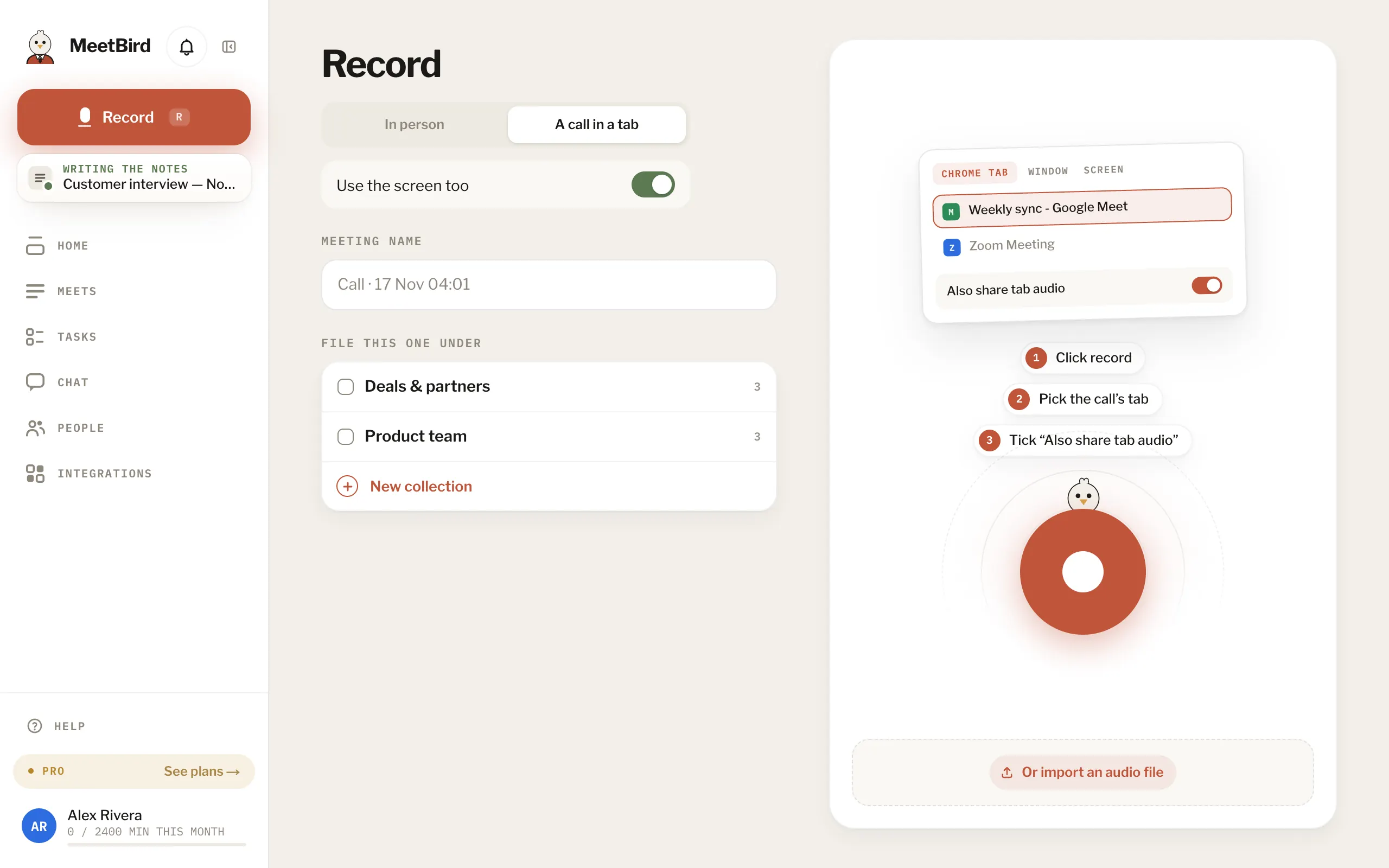
- Zoom: choose Join from your browser on the invite’s page. Teams: Continue on this browser. Meet is always in a tab.
- The call has to be in a browser tab. In the Zoom or Teams desktop app, use In person with your speakers on (not headphones). Or join the call in the browser.
- Safari and Firefox can’t share a tab’s sound: open MeetBird in Chrome or Edge.
- If the tab stops sharing, the recording stops with it.
- With Use the screen too on, the tasks get pictures of what was on the call’s screen. Turn it off to record only the sound. It’s the same switch as Record video on Profile.