An AI note taker that captures the shared screen
When a task is agreed while something is on screen, the task gets a picture of it and a short clip of the moment, with its sound. Nobody has to ask “which page did we mean?”
- Every plan, Free too
- Calls in Chrome or Edge
- MP4 and WebM imports too
QUICK ANSWER
Is there an AI note taker that captures screenshots of the shared screen?
Yes. When a screen is shared in a call you record from a browser tab, MeetBird puts a picture of that screen and a short clip of the moment, with its sound, on tasks agreed while it was shown, and on the steps of a guide. The whole screen also plays next to the transcript for 7 days; then the video is deleted, and the pictures and the clips on tasks and saved guides stay. Task pictures skip screens that look private; clips and guide pictures aren’t checked for that, so look before you share. It works on every plan, Free included, and for MP4 and WebM files you import.
Updated . Written by the people who make MeetBird. The people and meetings in the pictures are sample data.
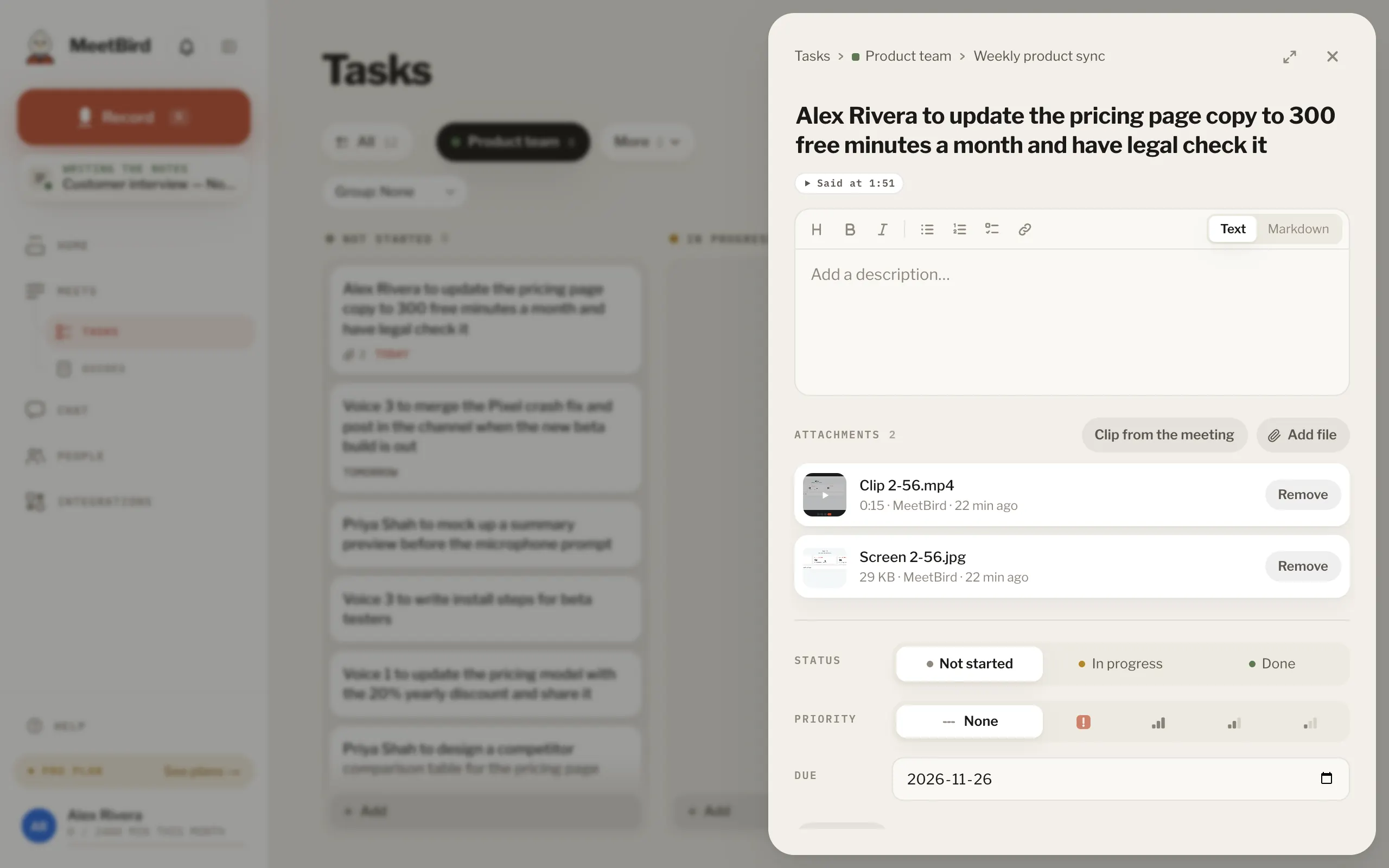
What lands where
On a task
Up to two pictures and one clip, under Attachments. Said at plays the meeting from just before it was agreed.
Read more →On a guide’s steps
When someone shows how to do something, each step has its picture and its own piece of the recording.
Read more →On the meeting’s page
The screen plays big beside the transcript, in step with the words, with chapters and subtitles, for 7 days.
How to get them
- 1
Record the call from its tab
Under On a call, press Record the call and leave Keep the video too on. Pick the tab and turn on Also share tab audio.
- 2
Open a task when the notes are ready
The pictures and the clip are there. Press one to open it big. Chat can show them too: “What was on the screen when we decided the price?”
- 3
Change the part, if it’s not the right one
Press Edit on a clip: the meeting opens around it. Drag its ends, or press a line in the transcript. A clip can be up to 5 minutes. The camera button puts what you see on the task as a picture.
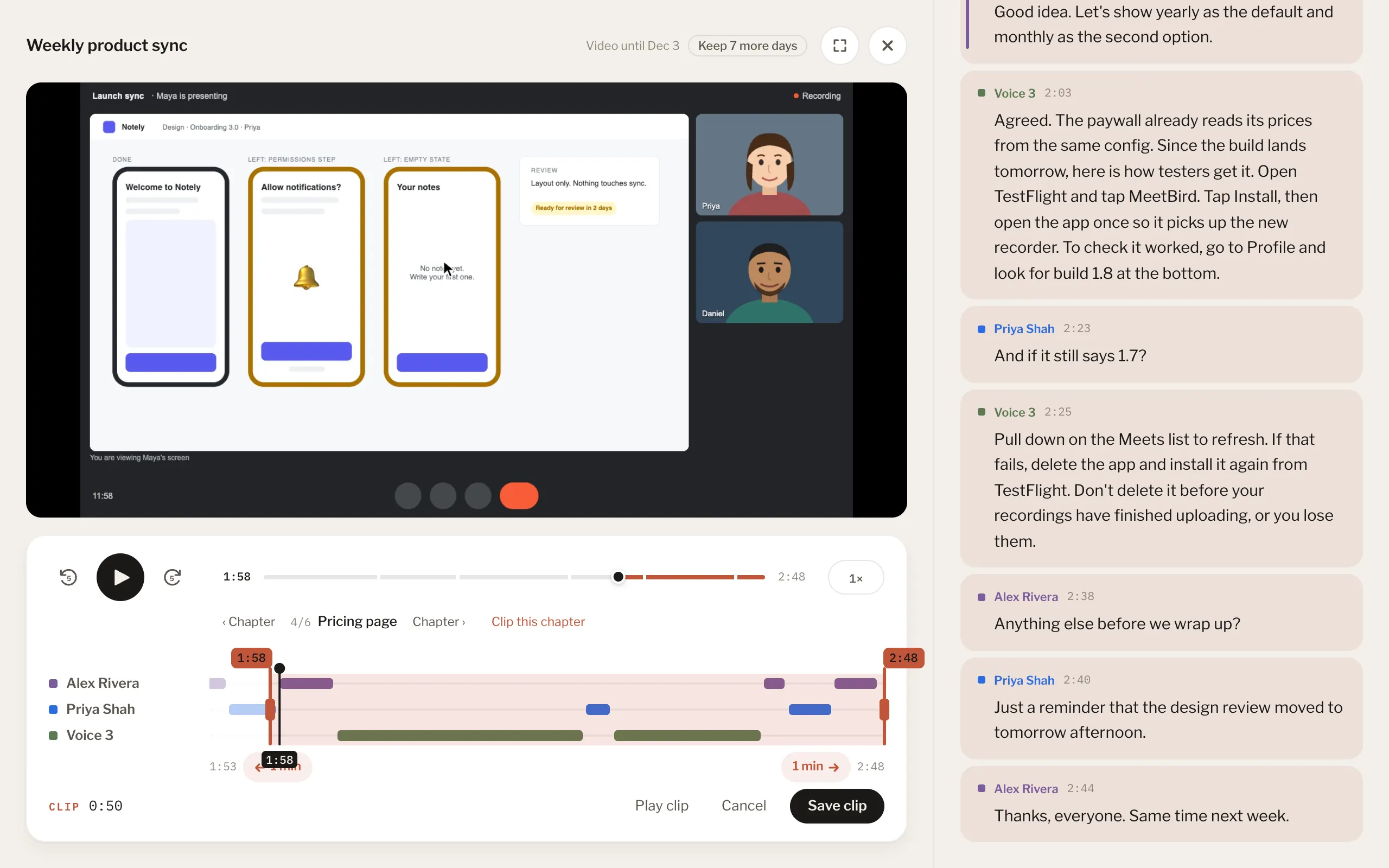
- 4
Or make one yourself
Clip from the meeting on any task cuts the part you choose. Nothing is added until you save.
What is kept, and for how long
| What | Kept for | You can |
|---|---|---|
| The meeting’s full video | 7 days, then deleted | Press Keep 7 more days in its last days |
| Clips on tasks and on saved guides’ steps | Until you remove them | Change a clip’s part while the video is kept |
| Pictures | Until you remove them | Add your own, or remove one for everyone |
| The sound | As long as you keep it | Turn off Keep the audio after the summary and it goes once the notes exist |
Turning it off
- One call: turn off Keep the video too before you record. Only the sound is kept.
- Always: Profile › Recording & voice › Record video off.
- Keep the video, make no clips: Make clips automatically off. You can still cut one by hand.
Slides in the transcript, or the screen on the task?
Some note takers capture every slide and lay the images along the transcript. That suits a lecture: you get the whole deck in order. MeetBird does the other thing. It looks for what people agreed to do and attaches the screen to that. If you want every slide from a presentation, a tool that captures slides is the better choice.
Questions people ask
Does it take a screenshot of everything?
No. It chooses the moment a task was agreed or a step was shown. For tasks it skips screens about something else, and tries to skip ones that look private, such as a password.
Is video stored forever?
No. The meeting’s video is deleted after 7 days unless you keep it 7 more. Pictures, and the clips on tasks and saved guides, stay.
Does it work with Zoom and Teams?
With any call open in a Chrome or Edge tab, Zoom and Teams on the web included. See Zoom and Microsoft Teams.
Can it use a recording I already have?
Yes: an MP4 or WebM file up to 2 GB.
Can I ask what was on the screen?
Yes. Chat and the talking bird look at the pictures and clips and show them in the answer. Claude can too, when connected on Pro and up.
Does it recognize text on the slides?
Chat reads what is in a picture when you ask about it. There is no separate text search over slides.
Read next
Start with your next meeting.
Free to start, no card. Record in your browser today: the first notes are back a few minutes after you stop.